
Fake WhatsApp Chat Generator
My Crush ❤️
online
Fake WhatsApp Chat Generator for Fictional Screenshots
Quick links: What the tool does · How to create a chat · Customization options · Creative uses · Responsible-use checklist · FAQs
What Is a Fake WhatsApp Chat?
A fake WhatsApp chat is a manually created visual mockup that resembles a messaging conversation. Instead of capturing a real conversation, you write both sides of a fictional exchange and control how it appears. A chat generator then arranges those details into familiar elements such as a contact header, message bubbles, timestamps and read-receipt ticks.
People search for a fake WhatsApp chat maker for different reasons. A creator may need a short conversation for a meme or storytelling video. A designer may need a messaging screen for a presentation or interface concept. A teacher may want a dialogue example without displaying a student’s private messages. A support or security team may need a safe illustration for scam-awareness training. In each case, a generated mockup avoids exposing an actual private conversation.
This page creates a visual simulation only. The result is not connected to WhatsApp or Meta, and it should not be treated as proof that a real exchange occurred.
Fake Chat Maker vs. Real WhatsApp Screenshot
A real screenshot records something that appeared on a device. A fake chat maker builds a new image from details entered by the user. That distinction should remain clear when the image is published or shared. Add a “fictional,” “mockup” or “recreated for demonstration” label whenever viewers could reasonably mistake the image for a genuine conversation.
How to Create a Fake WhatsApp Chat Screenshot
You do not need Photoshop, design software or a WhatsApp login. Use the controls above and follow these steps:
- Choose Android or iPhone. Select the layout that fits your project. You can also enable Dark Mode to preview a darker chat interface.
- Set up the fictional contact. Enter a made-up name and status, choose a display time and optionally select a profile image from your device. Avoid using a real person’s identity without permission.
- Choose a message type. Add a normal text bubble, an image, a system-style notice or an audio-style message.
- Select the message side. Use Receiver (Left) for an incoming message or Sender (Right) for an outgoing message.
- Choose the tick status. Outgoing messages can display no tick, delivered ticks or blue read ticks. Pick the state that matches your fictional timeline.
- Build the conversation. Add messages in the order you want them to appear. Keep the exchange short enough to remain readable in the phone preview.
- Review the complete mockup. Check names, spelling, message order, timestamps, theme and profile image before exporting.
- Download the screenshot. Select Download Screenshot to save the generated image for your creative or educational project.
For a convincing but ethical result, use realistic spacing and short conversational sentences while keeping the scenario unmistakably fictional.
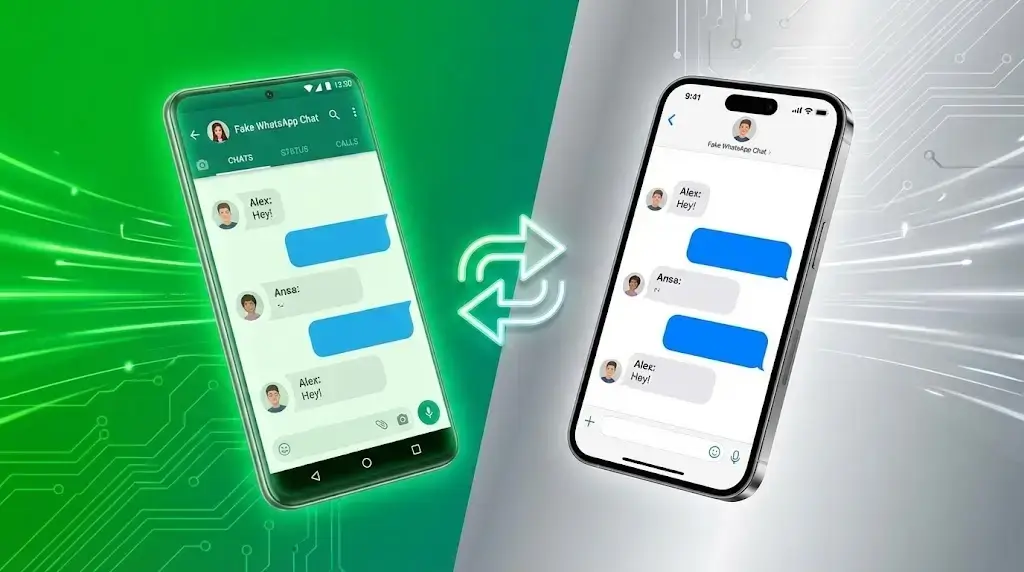
Customize Your WhatsApp-Style Chat Mockup
Contact Name, Status, Time and Profile Photo
The header establishes the context of the conversation. Add a fictional contact name, use a short status such as “online” or “typing…,” and set the displayed time. A profile photo can make a design mockup feel complete, but it should be an image you own, have permission to use, or that does not identify a real person.
If the screenshot is for a classroom, presentation or product demo, neutral labels such as “Customer,” “Support Agent,” “Student A” and “Project Team” are safer than real names. They also make the purpose of the example easier to understand.
Incoming Messages, Outgoing Messages and Blue Ticks
Conversation structure depends on message direction. Incoming messages appear on the left, while outgoing messages appear on the right. The tick selector lets you simulate common delivery states for outgoing bubbles. No tick, delivered ticks and blue read ticks can help show the sequence of a fictional conversation without requiring a real messaging account.
Write each message as it would naturally appear on a phone. Short bubbles are easier to scan than a single large paragraph. Check the preview after each addition so that the story remains clear.
Text, Images, Audio-Style Messages and System Notices
The WSBot WhatsApp chat generator supports more than plain text. You can add a local image to a message, create an audio-style bubble or include a system-style notice. These options are useful for storyboards, training slides and social content where different types of chat activity need to be illustrated.
Uploaded images are selected from your device for the browser preview. Review the final screenshot carefully and do not include confidential documents, private photos or sensitive personal information.
Android, iPhone, Light Mode and Dark Mode
Switch between Android and iPhone views to match the visual context of your project. The Dark Mode option provides an additional appearance for scenes set at night or for designs that use a dark interface. Because messaging interfaces change over time, treat the output as a WhatsApp-style mockup rather than an official or permanently pixel-perfect copy of the app.
Useful and Responsible Ways to Use a Fake Chat Generator
Memes, Skits and Fictional Storytelling
Chat screenshots are a compact way to present dialogue. Writers and creators can use them for parody, fictional characters, comedy sketches, reaction memes, video thumbnails and short-form storytelling. The strongest examples make the fictional context obvious through captions, character names or a visible disclaimer.
If you are building a longer story, draft the dialogue first, then turn the key moments into chat bubbles. This keeps the conversation focused and prevents the phone screen from becoming overcrowded.
UI Mockups, Presentations and Product Demonstrations
Designers can create a WhatsApp-style conversation mockup for wireframes, campaign concepts, training decks and user-flow demonstrations. A generated chat lets a team discuss spacing, copy length and message order without sharing customer conversations. For interface planning, use placeholder names and fictional content so that the asset is safe to reuse.
Education, Language Practice and Support Examples
Teachers can create short dialogues for language exercises, reading comprehension or digital-literacy lessons. Support teams can illustrate an example conversation without exposing a customer’s name or phone number. A fake conversation can also demonstrate how a helpful support exchange should be structured, provided it is labelled as an example rather than a real testimonial.
Scam-Awareness and Media-Literacy Training
A fictional chat screenshot can demonstrate warning signs such as urgent payment requests, suspicious links, requests for verification codes or impersonation attempts. Clearly mark the example as simulated and explain which details make it suspicious. Never recreate a real victim’s private conversation without consent, and never include working malicious links or real financial information.
Responsible-Use Checklist
Realistic-looking chat images can be misunderstood when they are separated from their original caption. Before downloading or sharing a screenshot, check the following:
- Use fictional people, brands and situations unless you have clear permission.
- Label the image as fictional, simulated, parody or a design mockup when confusion is possible.
- Do not use generated chats for fraud, impersonation, harassment, defamation, blackmail or fake evidence.
- Do not fabricate customer testimonials, employment instructions, payment confirmations or emergency messages.
- Remove private names, phone numbers, addresses, account details and verification codes.
- Avoid copyrighted profile images or photos of real people without consent.
- Keep the surrounding caption with the image so viewers understand its purpose.
- If the example is used in training, explain the lesson and the fictional nature of the scenario.
The tool gives you control over visual details, but you remain responsible for how the generated image is created, labelled and shared.
Privacy and Download Notes
The generator runs in your browser and does not require a WhatsApp account. The current tool uses browser-side image handling and screenshot generation for the preview and download process. Even so, the safest approach is to use non-sensitive placeholder content. Avoid entering information that you would not want included in the exported image.
Before downloading, inspect the full preview for cropped messages, spelling mistakes or unintended personal details. The screenshot is a static image; downloading it does not send the conversation to another person or publish it automatically.
More WSBot Messaging Tools
After preparing a fictional conversation, you can use the WhatsApp Message Preview Tool to check message presentation, the WhatsApp Font Styler for decorative text, or the WhatsApp Status Caption Generator for caption ideas. For real customer outreach, use the WhatsApp Link Generator to create a legitimate click-to-chat link. The WhatsApp Text Repeater can help create repeated test strings, but it should never be used to spam people.
Fake WhatsApp Chat Generator FAQs
Yes. You can use the WSBot tool online without connecting a WhatsApp account. Build the mockup, review the preview and download the image. The current page does not require a login for the generator.
No. It creates a visual WhatsApp-style chat mockup inside the page. It cannot access your WhatsApp conversations, contact another user or send a real message.
Yes. Use the Android and iPhone controls to switch the preview layout. You can also enable Dark Mode before downloading the final screenshot.
The current tool supports a profile image, text messages, image messages, audio-style messages, system notices and delivery/read tick options. Always use images you have permission to use and avoid private material.
The current generator reads selected images in the browser for the local preview and uses browser-side screenshot generation for download. However, you should still avoid sensitive images and check the exported screenshot before sharing it.
No. A generated chat is a fictional visual mockup and is not evidence that a conversation occurred. Do not use it to deceive someone, impersonate a real person or support a false claim.
Use consistent timestamps, short natural messages and the correct incoming/outgoing sides. Then add a visible fictional or mockup label when you publish it. Realism can support storytelling and design, but the context should never mislead viewers.
Create a Fictional WhatsApp-Style Conversation
Use the controls at the top of this page to build your mockup. Add a fictional contact, create both sides of the conversation, review the theme and tick states, and download the result when it is ready. Keep it creative, transparent and respectful.