Free WhatsApp Tools Online for Messages, Groups and Business
WSBot brings practical WhatsApp tools together in one place so you can complete common tasks without jumping between different websites. Create direct chat links and QR codes, prepare group names and descriptions, format text, make stickers, clean contact lists, draft follow-up messages, and explore creative messaging tools from your browser.
The collection is designed for everyday users, group admins, freelancers, small businesses, community managers, and content creators. Each tool focuses on a specific task and provides an output you can copy, download, or use in WhatsApp. Start with the category that matches your goal, then open the individual tool for instructions, examples, limitations, and privacy information.
Find the Right WhatsApp Tool for Your Task
WhatsApp Links and QR Codes
Use the WhatsApp Link Generator to create a direct chat link with an optional pre-filled message. For printed material, menus, packaging, social profiles, or shop counters, the WhatsApp QR Code Generator turns that contact route into a scannable code.
Group Names, Descriptions and Rules
Text Styling and Creative Messages
Clean, Count and Convert Text
Images, Stickers and Message Previews
Create a custom sticker from a photo with the WhatsApp Sticker Maker, add a border to a profile image with the DP Border Maker, or test how copy looks using the Message Preview Tool. Preview and simulation tools should be used responsibly and should never be presented as evidence of a real conversation.
Business Messaging and Planning
How to Use WSBot Tools
- Choose your goal. Select a category or open a tool from the list above.
- Enter only the information the tool needs. Read the instructions on that page before adding text, a phone number, an image, or a file.
- Review the result. Check spelling, tone, formatting, country code, image crop, or other relevant details.
- Copy, download, or open the result. Use the available action only after confirming the output is correct.
Generated descriptions, rules, names, captions, and follow-up messages are starting points. Personalize them for your audience instead of sending the same generic text everywhere.
Popular WhatsApp Tasks You Can Complete
If you need ideas for a WhatsApp group description, begin with the Group Description Generator and select a tone that suits friends, family, study, community, or business groups. If you need group chat rules to copy and paste, use the Group Rules Generator, then remove any rule that does not apply to your members.
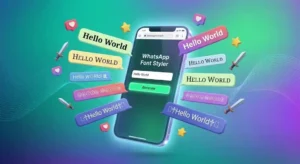
For visual messages, the Blue Text Generator and Font Styler produce Unicode-based characters that can be copied into supported apps. Appearance can vary by device, operating system, and font support, so preview the result before sharing it. For stickers and profile images, check the final crop and readability on a small mobile screen.
Businesses can create a click-to-chat link, turn it into a QR code, prepare an About line, and draft a follow-up message. This creates a simple path from discovery to conversation while allowing the business owner to review every message before it reaches a customer.
Privacy, Accuracy and Responsible Use
Use only information, images, conversations, and contact lists that you own or have permission to process. Do not use extraction, preview, simulation, prank, or formatting tools for impersonation, harassment, unsolicited messaging, misinformation, or to mislead another person. Outputs can also behave differently across WhatsApp versions and devices, so important links, QR codes, formatting, and exported files should be tested before public use.
WSBot is an independent website and is not affiliated with, endorsed by, or sponsored by WhatsApp LLC or Meta Platforms, Inc. WhatsApp is a trademark of its respective owner.
Frequently Asked Questions
Are the WhatsApp tools on WSBot free?
Yes. All tools listed on this page are currently free to use online. Individual tool pages explain the available controls, supported formats, and any practical limits.
Do I need to install an app?
No separate WSBot mobile app is required for the browser-based tools. Some results may open in WhatsApp or need to be downloaded before you use them.
Can I use these tools for WhatsApp Business?
Several tools are useful for business tasks, including direct links, QR codes, bios, follow-up messages, conversation planning, and text preparation. Always review generated content for accuracy and compliance with your own business policies.
Why does styled text look different on another phone?
Fancy, blue-style, upside-down, and decorative text often uses Unicode characters rather than a new WhatsApp font. Character support varies between devices and apps, which can change spacing or appearance.
Does WSBot send messages automatically?
The generators help prepare content or create links. A user should review the result and choose when and where to share it. Do not use these tools for spam or unsolicited communication.